File Viewing and Editing Guide
This document provides guidance on how to open files from SHIELD Drive and how to edit documents. Files can be opened using web office, local Office apps, or SHIELD Viewer, and the available method is determined by the storage type, saving method, permissions set by the administrator (viewing, editing, downloading), and file extension.
1. How to open a file
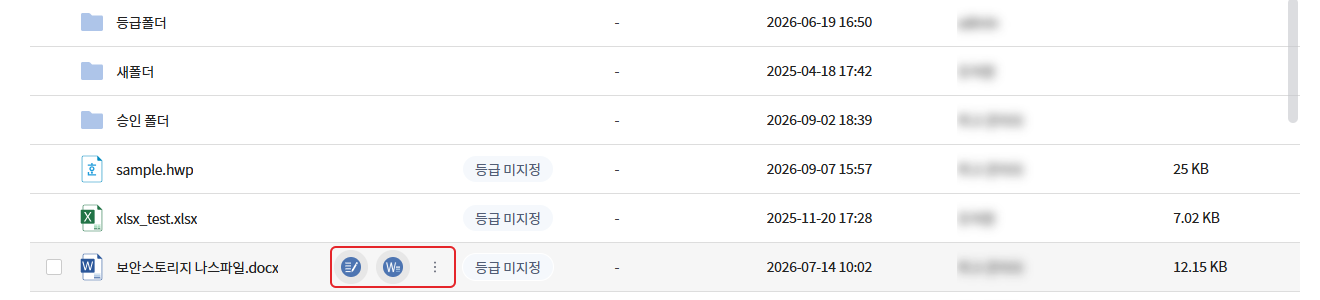
| Method | Action |
|---|---|
| Double-click the item | Opened in the first way that can be used in the order below |
| Icon that appears when hovering over an item | Indicate which can be used among the web editing/app editing icons or viewer/download icons. |
| Right click > [Open in Web] · [Open in App] · [Open in Viewer] | Choose the desired method directly |
When opening with a double click, the method is determined in the following order.
- If web co-editing is available, it opens in the web office.
- If you can use app editing, it opens in the local Office app.
- If you have viewing permissions and the file extension is supported by SHIELD Viewer, it will open with SHIELD Viewer.
- If you have download permission, you can download the file.
- If none apply, a message indicating that you do not have permission will be displayed.
When you start the opening, the progress status will be displayed at the bottom right of the screen. If a new window does not open and a message saying "Popup blocking is enabled." appears, please allow popups for the SHIELD Drive address in your browser and try again.
2. Open with SHIELD Viewer
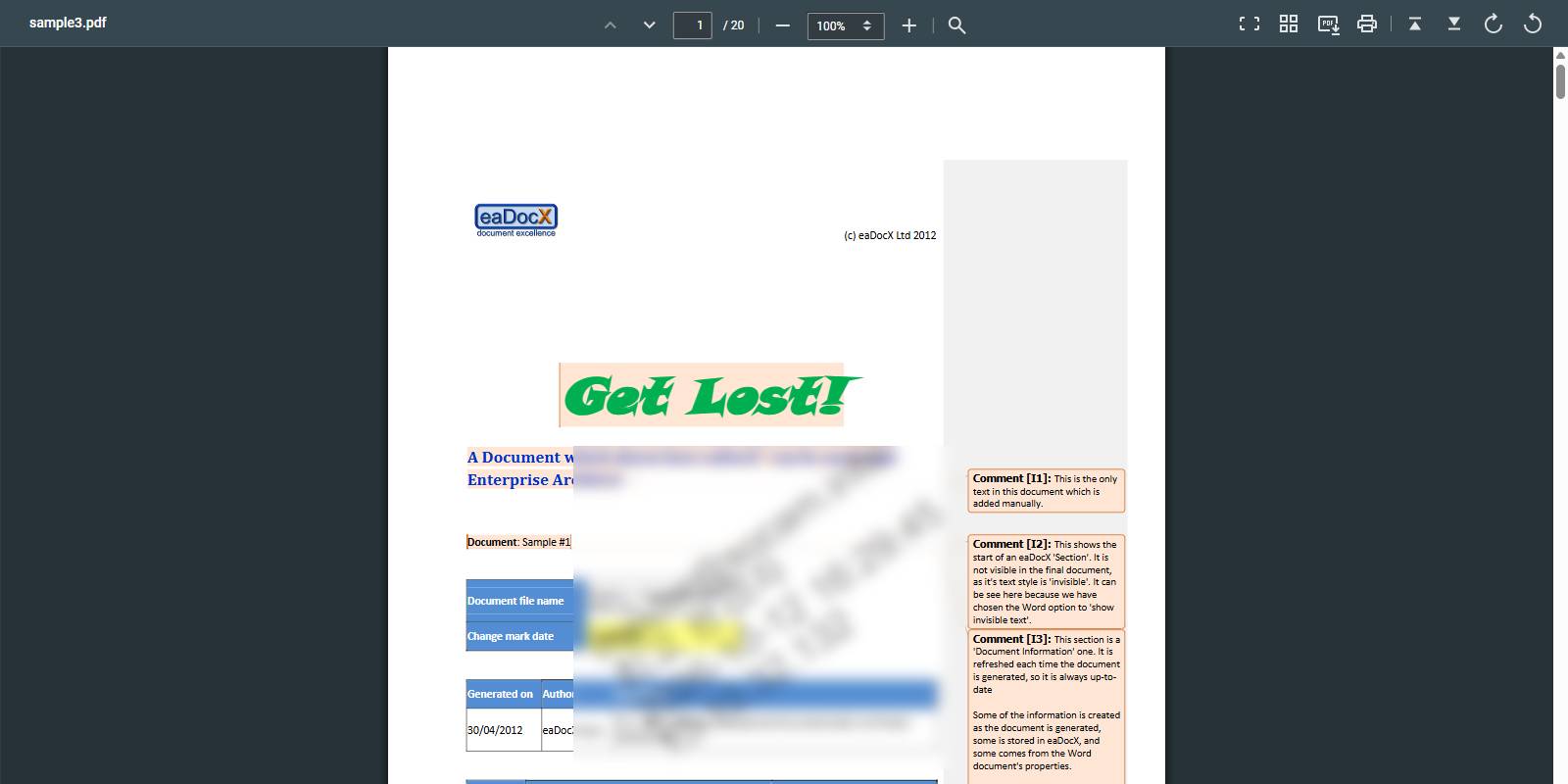
SHIELD Viewer is a secure viewer that displays files in read-only mode in a new browser window without downloading them. It can be used with all types of storage and storage methods.
- Target: Viewer-supported file extensions among files with viewing permissions
- Main supported extensions: doc·docx·docm, xls·xlsx·xlsm·xlsb, ppt·pptx·pptm, pdf, hwp·hwpx, txt, odt, md, htm·html·mht, jpg·jpeg·png·gif·tif·tiff
- The supported extensions may vary depending on the viewer server settings.
- If the administrator has enabled screen marking, the viewer information (account, name, access date and time, connection IP) will be displayed as a watermark on the screen.
3. Web Collaborative Editing
Multiple users edit the same document simultaneously in the browser's web office. No separate program needs to be installed, and the editing content is automatically saved.
| Storage | Web Office | extension |
|---|---|---|
| NAS · Security NAS · Amazon S3 | Hancom Web Office | hwp·hwpx, doc·docx, xls·xlsx, ppt·pptx, cell·show, odt·ods·odp |
| NAS · Security NAS · Amazon S3 | MS Office Online Server | docx·xlsx·pptx |
| OneDrive · SharePoint | MS Web Office | docx·xlsx·pptx |
| Google Drive | Google Web Office | docx·xlsx·pptx |
- Only available in secure storage. Regular storage does not provide web co-editing.
- You must have all the editors and editing permissions set for the web office and storage contracted with the company for [Open in Web] to be displayed.
How to use
- Right-click the file and select [Open in Web], or click the web editing icon that appears when you hover over it.
- Edit when the web office opens in a new window. If another user has the same document open on the web, it will be edited together.
4. App Editing
Open the document with the Office app installed on your local PC. Right-click the file and select [Open with app] or click the app edit icon to launch the Office app. When you save in the app, it will be immediately reflected in SHIELD Drive.
| division | Target | Simultaneous Editing |
|---|---|---|
| MS App Co-Editing | OneDrive · SharePoint Storage | Multiple users editing together in Office apps |
| App Editing (Secure Storage) | NAS · Security NAS · Amazon S3 Secure Storage | One at a time. The file is locked during editing. |
| App Editing (General Save) | SFTP Connected NAS · Secure NAS Storage that Supports Locking Among General Storage Solutions | One at a time. The file is locked during editing. |
- The target extensions are docx · xlsx · pptx.
- You must have edit permissions, and the administrator must allow app editing in the storage.
- In the Linux environment, app editing is not provided.
- In secure storage, a new version is recorded every time you save. Regular storage directly changes the file at the original path without leaving a version.
- If you reopen the file you are editing, it will continue editing without confirmation.
4-1. Notes on Editing General Storage Apps
- WebDAV-connected NAS and SharePoint standard storage do not provide app editing.
- Closing the Office app will unlock it. It usually takes about 3 to 4 minutes to release, and it may take longer depending on the NAS response.
- Locking only prevents access that goes through the SHIELD Drive. It cannot prevent overwriting, deleting, or moving files by directly accessing the NAS (File Station, SMB, etc.).
- If the original file is deleted from the NAS while editing, you can upload a new file to the same path on the SHIELD Drive.
5. When opening a document that another user is editing
When you open a document that another user is editing, a notification window will appear with the name of the user who is currently editing. The buttons you can choose from will vary depending on the permissions and storage settings you have.
(Image to be attached later)
| situation | Guide Window Title | Guide text | Select Button |
|---|---|---|---|
| Collaborative editing in Hancom Web Office | Collaborative Editing Guide | This document is being collaboratively edited by "OOO" using Hancom Office Web. Documents being collaboratively edited cannot be viewed with the local Office App. | [Open in Web Viewer (Read Only)] · [Open in Web (Co-editing)] |
| Collaborative editing in OOS web | Collaborative Editing Guide | This document is being collaboratively edited by "OOO" on the OOS web. Documents being collaboratively edited cannot be viewed in the local Office App. | [Open in Web Viewer (Read Only)] · [Open in Web (Co-Editing)] |
| Editing with the local Office app | Cannot edit collaboratively | This document is being edited by "OOO" in the local Office App. The file is available for use in read-only mode only. | [Open in Web Viewer (Read Only)] · [Open in App (Read Only)] |
| Editing in progress and no viewing permissions | Editing not allowed | The document is being edited by "OOO". It cannot be viewed. | [Download] (when you have download permission) or [Close] |
- [Open in Web Viewer] is only displayed when you have viewing permissions. If you do not have viewing permissions, only [Open in Web] or [Open in App] will be displayed.
- Selecting [Open with App (Read Only)] will open the Office app in read-only mode, and saving will not be reflected in SHIELD Drive.
- "Collaboration editing is only provided when all users view files in the web office." This notice may be displayed. If collaboration editing is needed, all users must open it with [Open in Web].
6. Limitations of the Document Being Edited
The following actions are restricted on documents that are in edit (locked) status.
| work | Guide text |
|---|---|
| Name Change | The document being edited cannot be renamed. |
| movement | The document being edited cannot be moved. |
| Delete | The document being edited cannot be deleted. |
| Overwrite by uploading, moving, or copying with the same name | One or more items are being viewed. Items being viewed cannot be changed. To continue, please create a copy through the [Maintain] menu. |
If there is at least one document being edited when processing multiple items together, the operation will be interrupted with a message saying "One or more documents are being edited."
7. If it does not open
| Guide | Cause · Action |
|---|---|
| The file has not been synchronized yet, so collaborative editing or viewing is not possible. Please view it after re-synchronizing the file. | Files that have not finished server saving. Refer to "Basic File and Folder Management" for handling synchronization failure files. |
| Account linkage required | OneDrive · SharePoint · Google Drive files. Proceed with account linking in the guide window. |
| File Opening Delay - The file is taking longer to open. Would you like to try again? | Response delay when opening with MS app co-editing in Teams app. Please try again. |
| You cannot download files in the mobile Teams environment. | Mobile Teams policy. Use [Open in Web] · [Open in App] · [Open in Viewer] in the prompt or access from PC. |